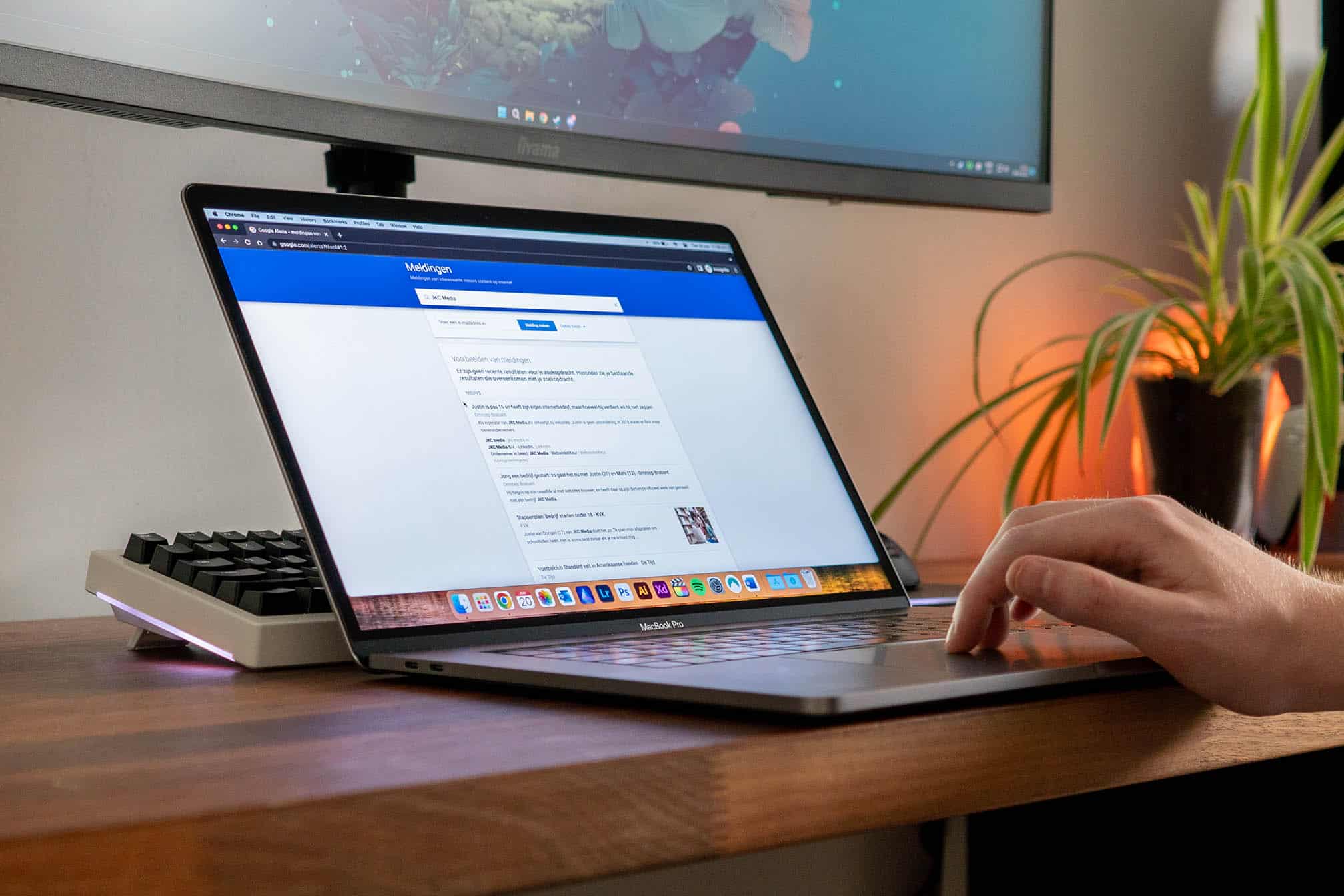
Wat is Google Alerts?
Google Alerts zorgt ervoor dat jij meldingen krijgt die Google verstuurt wanneer er iets online komt dat gaat over een door jouw opgegeven onderwerp. Het is een gratis dienst van Google.
Waarom wil ik Google meldingen gebruiken voor mijn bedrijf?
1. Je houdt bij wat er over jouw bedrijf geschreven wordt
Zo weet je precies wat er online over jou of jouw onderneming gezegd wordt. Ook weet je zo welke nieuwe backlinks er naar je site verwijzen. Vaak als je bedrijf genoemd wordt, zit er immers een link naar je website bij. Is dat niet het geval, kun je de websitehouder juist om een link naar je site vragen. Dat is voor het backlinkprofiel van je website belangrijk.
2. Je leest wat er over de concurrentie geschreven wordt/wat de concurrentie schrijft
Om goed op de hoogte te zijn van wat er gebeurt in jouw branche, is het handig te weten waar de concurrentie zich mee bezig houdt. Zo kun je bijvoorbeeld achterhalen wanneer een concurrent een gastblog plaatst op een website. De kans is groot dat die site ook relevant is voor jouw onderneming en doelgroep.
3. Je blijft op de hoogte van de nieuwste ontwikkelingen en kan zo relevante SEO-content schrijven
Zodra jij weet dat er een gloednieuwe ontwikkeling heeft plaatsgevonden in jouw branche, speel jij daarop in met een sterke blog. En zo komen anderen die zoeken naar het nieuws op jouw website terecht. Dat heeft een positieve invloed op de vindbaarheid van je site. Je vergoot je expertstatus en bent ondertussen bezig met SEO. Mensen volgen jou om op de hoogte te blijven van het laatste nieuws.
Ook is het eindeloos zoeken naar nieuwe blogonderwerpen voorbij: Google Alerts stuurt je de belangrijkste onderwerpen van het moment. Zo hoef jij niet meer het internet af te struinen voor relevante blogonderwerpen terwijl je al genoeg andere taken op je hebt liggen wachten. Aangezien Google Alerts je op de hoogte houdt van het laatste nieuws, kun jij dat nieuws omzetten in een blog voor jouw doelgroep. Dat maakt Google Alerts ook een goede tool voor het creëren van nieuwe content zoals het schrijven van artikelen.
Is het schrijven van relevante blogartikelen niet jouw ding? Of heb je er simpelweg de tijd niet voor? Wij nemen het graag voor je uit handen.
4. Je kunt snel reageren op berichten
Als je weet dat jouw onderneming ergens genoemd is, kun je daar vlug op reageren. Zowel bij positieve als negatieve berichten ben jij er razendsnel bij. Je kunt mensen bedanken of een oplossing bieden. Zo speel je in op het feit dat je bedrijf in het nieuws is geweest.
Hoe kan ik Google Alerts instellen?
Nu je op de hoogte bent van de voordelen van Google Alerts instellen, leggen we uit hoe je dat precies doet.
- Stap 1: ga naar Google Alerts
- Stap 2: typ een relevante term in Typ een term in waarvan jij op de hoogte wilt blijven, zoals je eigen bedrijf. Voorbeelden zijn je bedrijfsnaam, je voor- en achternaam, de naam van je product of dienst of die van concurrenten, of andere relevante termen binnen jouw sector.
- Stap 3: vul je e-mailadres in Wanneer jij al ingelogd staat met een Gmail-account, zie je als het goed is jouw account erbij staan. Je hebt dus wel een Google-account nodig om gebruik te maken van Google Alerts.
- Stap 4: bekijk of je de juiste resultaten krijgt Je ziet nu voorbeelden van meldingen die horen bij de zoekterm. Check goed of de zoekopdrachten ook laten zien waar je daadwerkelijk naar zocht. Wellicht komt jouw bedrijfsnaam of product (of een deel daarvan) ook op een andere manier terug. Denk aan een film of boek met dezelfde of gedeeltelijk identieke titel.
- Stap 5: stel filters in als dat nodig is Zitten er resultaten tussen die jij er niet bij wilt hebben? Het is mogelijk bepaalde filters te gebruiken bij het instellen van Google Alerts. Zo gebruik je dubbele aanhalingstekens als je een specifieke zoekopdracht wilt die uit meerdere woorden bestaat.
- Stap 6: pas eventueel de opties voor meldingen aan Met de knop ‘opties tonen’ kun je bepaalde instellingen aanpassen. Bijvoorbeeld hoe vaak je een melding wilt ontvangen, wat voor bronnen het moeten zijn en hoeveel resultaten je wilt krijgen.
Wil jij niet dat jouw mailbox bomvol zit met alleen maar Google meldingen? Maak bij instellingen een nieuwe filter aan met de naam Google meldingen. Zet de vinkjes ‘Inbox overslaan’ en ‘Label toepassen’ aan en maak een nieuw label met de naam Google Alerts.
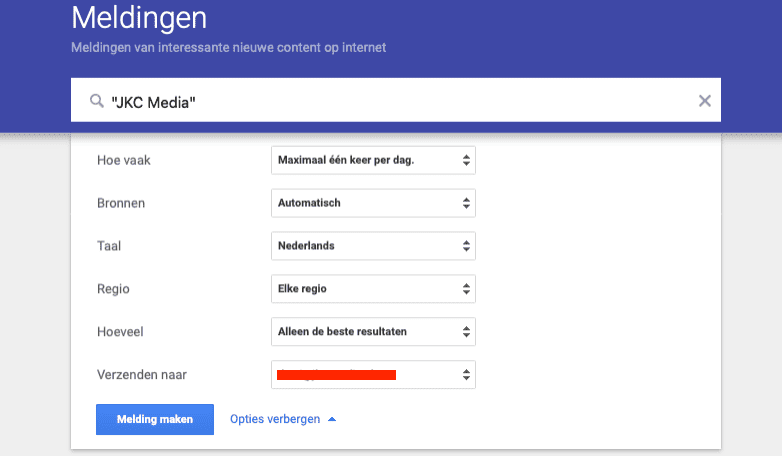
- Stap 7: laatste instellingen aanpassen Wanneer je de Google meldingen hebt gemaakt, kun je deze als laatste nog op een paar punten aanpassen. Verwijder de melding gemakkelijk door op de prullenbak te klikken of kijk naar andere instellingen met het tandwiel. Pas daar de bezorgtijd aan en kies of je een samenvatting wilt ontvangen of niet.
JKC Media schrijft SEO-content voor jouw website
Heb jij door het instellen van Google Alerts ideeën genoeg voor interessante blogs en webteksten? Maar vind je het schrijven van goede SEO-content voor je website lastig? JKC Media gaat voor jou aan de slag. Neem gelijk contact op voor een vrijblijvend gesprek.